Guide to Recasting People in Videos
Recast the person in a video in getimg.ai with one face photo, while the clip follows the original performance.
How It Works
You can recast the person in a clip with someone from a photo to make an AI face swap video. A clear, front-facing photo works best.
The maximum length of the clip you can attach as a reference, and so edit, varies by model:
Model | Max length of the attached clip |
Seedance 2.5 | 30 seconds |
MiniMax H3 | 15 seconds |
MiniMax H3 Max | 15 seconds |
Kling 4.0 | 30 seconds in total, across up to 5 clips |
Wan 3.0 | 15 seconds |
Use your own face, fictional characters you have the rights to use, or people who have agreed to appear in your video. Do not use someone's likeness without permission or to mislead people about who said or did something.
There are two ways to do it:
- From the full video view: for any video in your gallery, including uploads.
- From the Create video prompt box: for a clip you upload or pick from your gallery.
In both, you can attach more references to the same edit with the Reference button, like a photo or an audio file.
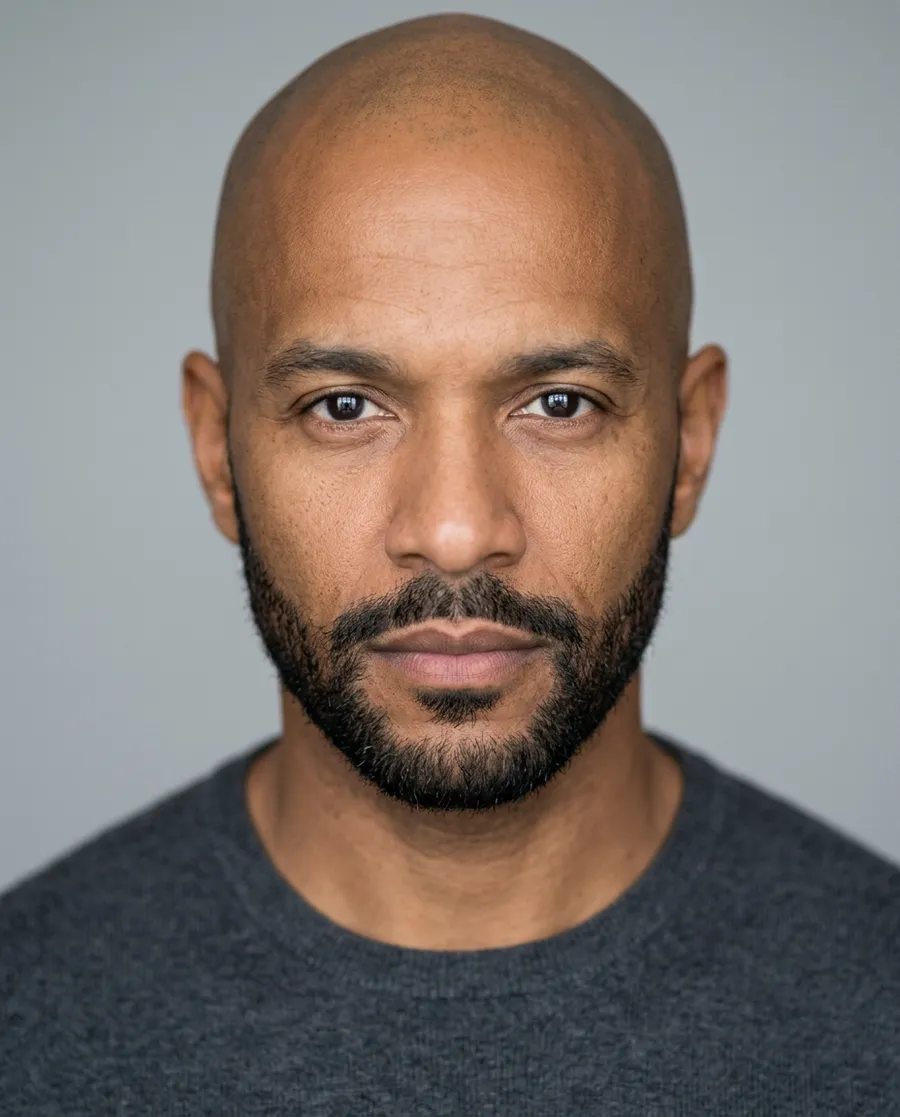
Ask for the face and hair only, and name the outfit from the clip, for example: recast him with the man in the photo, using only his face and hair, and keep the grey hoodie. Otherwise the clothes from the photo can carry over.
Option 1. Recast from Full Video View
This works for any video you have already generated or uploaded:
- Log into getimg.ai and click a video in your gallery (All media, Uploads, a folder or the Create video gallery). It opens in full view, with the clip already attached to the prompt box below.
- Click the Reference button in the prompt box and add a photo of the new person (a clear, front-facing one works best).
- Describe the edit in the prompt box.
- Click the arrow in the prompt box. The edited video appears in your gallery as a new video.
Examples:
- recast him with the man in the photo, keep the grey hoodie and the kitchen
- swap her for the woman in the photo and keep her knitting
Option 2. Recast Using the Create Video Prompt Box
Use this when you want to start from Create video:
- Open Create video in the sidebar, under the Video group.
- Click the model button in the bottom left of the prompt box and choose one of the available models that support videos as references.
- Click the Reference button in the prompt box and press Upload file or Select existing to add your clip.
- Click the Reference button again and add a photo of the new person (a clear, front-facing one works best).
- Describe the edit in the prompt box.
- Click the arrow in the prompt box to generate.
Examples:
- recast the runner with the woman in the photo
- replace her with the woman in the photo, keep everything else.
Frequently Asked Questions
Your own face, fictional characters you have the rights to use, or faces of people who have agreed to appear in your video. Use of the tool is subject to our terms and applicable third-party rights.
Usually, yes. They are guided by your original clip, while the face and hair come from the photo. Small details can differ, so check close-ups.
The AI can pick up clothing from the face photo. Ask for the face and hair only, and name the outfit from the clip in the prompt.
It depends on the model: up to 30 seconds on Seedance 2.5, up to 30 seconds in total across up to 5 clips on Kling 4.0, and up to 15 seconds on MiniMax H3, MiniMax H3 Max and Wan 3.0. Front-facing, well-lit shots give the most convincing recasts. The general flow is in the Guide to Video Editing Basics.